Enterprise and higher
Team Checkout and Locks
Coordinate work on documents in shared folders.
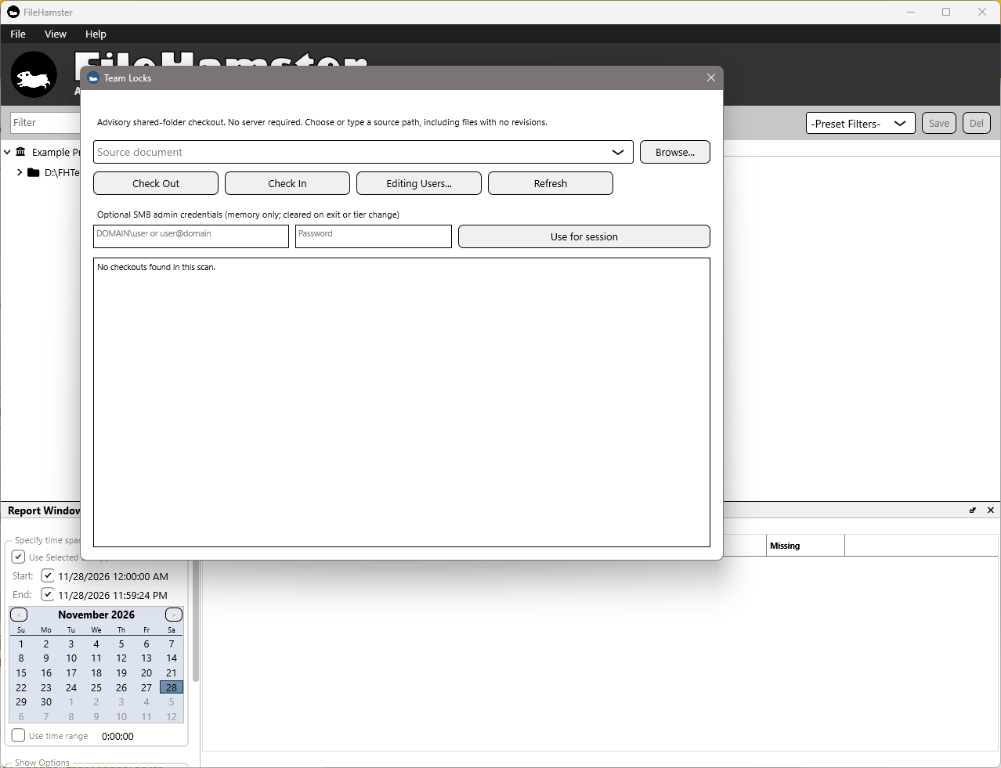
How to
- Open Options > Team Options for the shared watch or relevant scope and enable shared-folder Team coordination.
- Choose View > Team Locks and select a source document.
- Use Check Out before editing and Check In when finished.
- Use Refresh to inspect lock ownership. Review the read-only and automatic checkout policies before enabling them.
Note: Team locks are advisory; applications or users that ignore them are not prevented from editing.
